


Getting a custom part quoted should not feel complicated. If you already have a drawing or 3D file ready, Yijin Solution’s online quoting system gives you a faster way to check pricing, adjust requirements, and move into ordering.
This guide walks through the main steps, from uploading a file and reviewing a quote to updating configurations, checking out, and managing orders later in your account.
Whether you are sourcing a single custom part or preparing a repeat order, this article will help you understand how the platform works and what to expect at each stage.
Getting Started
To use the platform smoothly, it is best to open it in a Chromium-based browser such as Chrome or Edge.
Open the quoting system here:
https://quote.yijinsolution.com/#/ai
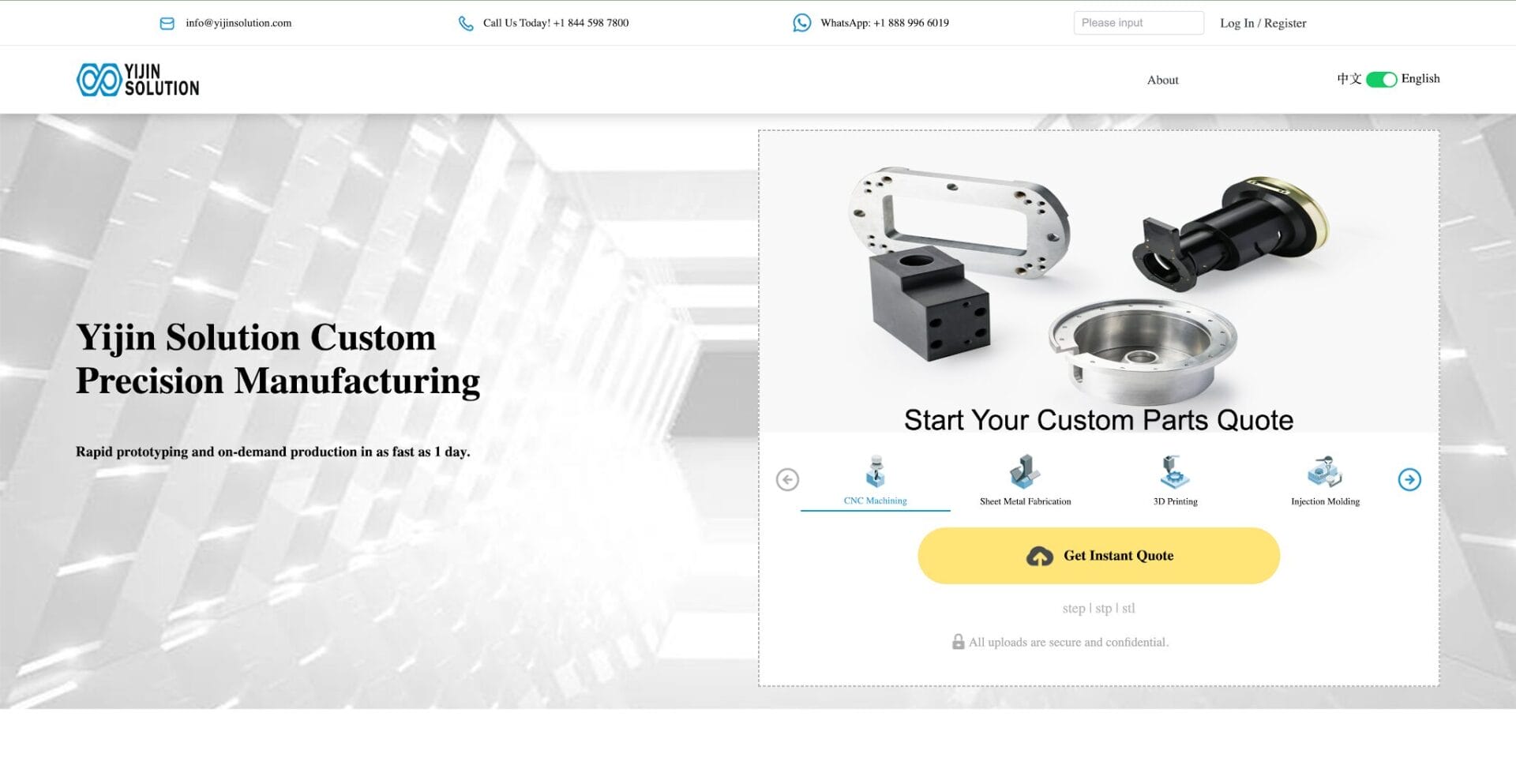
Once you are on the page, you can switch the display language using the language button in the top right corner.
Get an Instant Quote
Upload Your File
To start a quote:
- Click Get Instant Quote
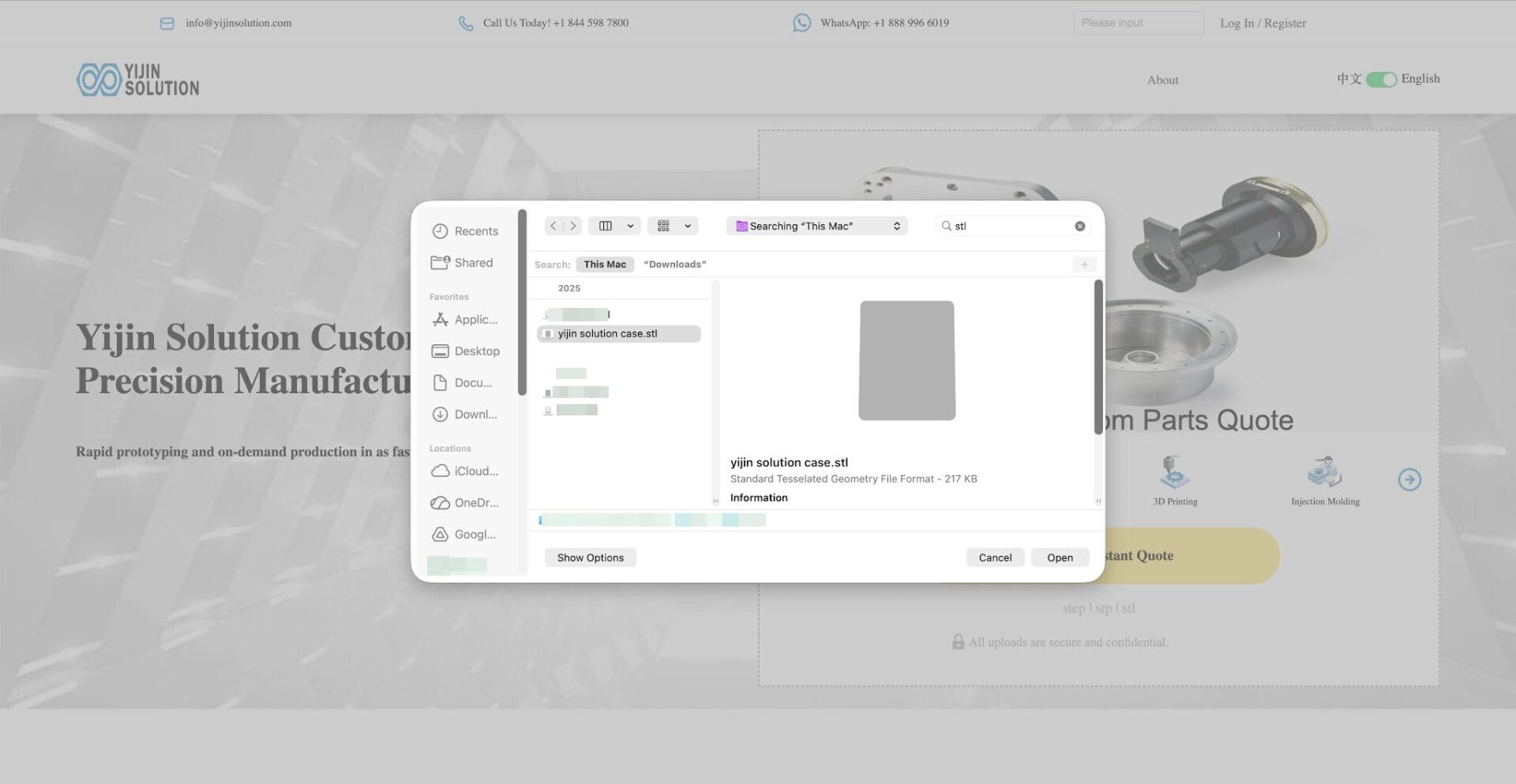
- Select the file you want to quote
- Click Open
The system will automatically upload your file and begin processing the quote.
Wait for Price Calculation
After the upload is complete, the system will calculate the price automatically.
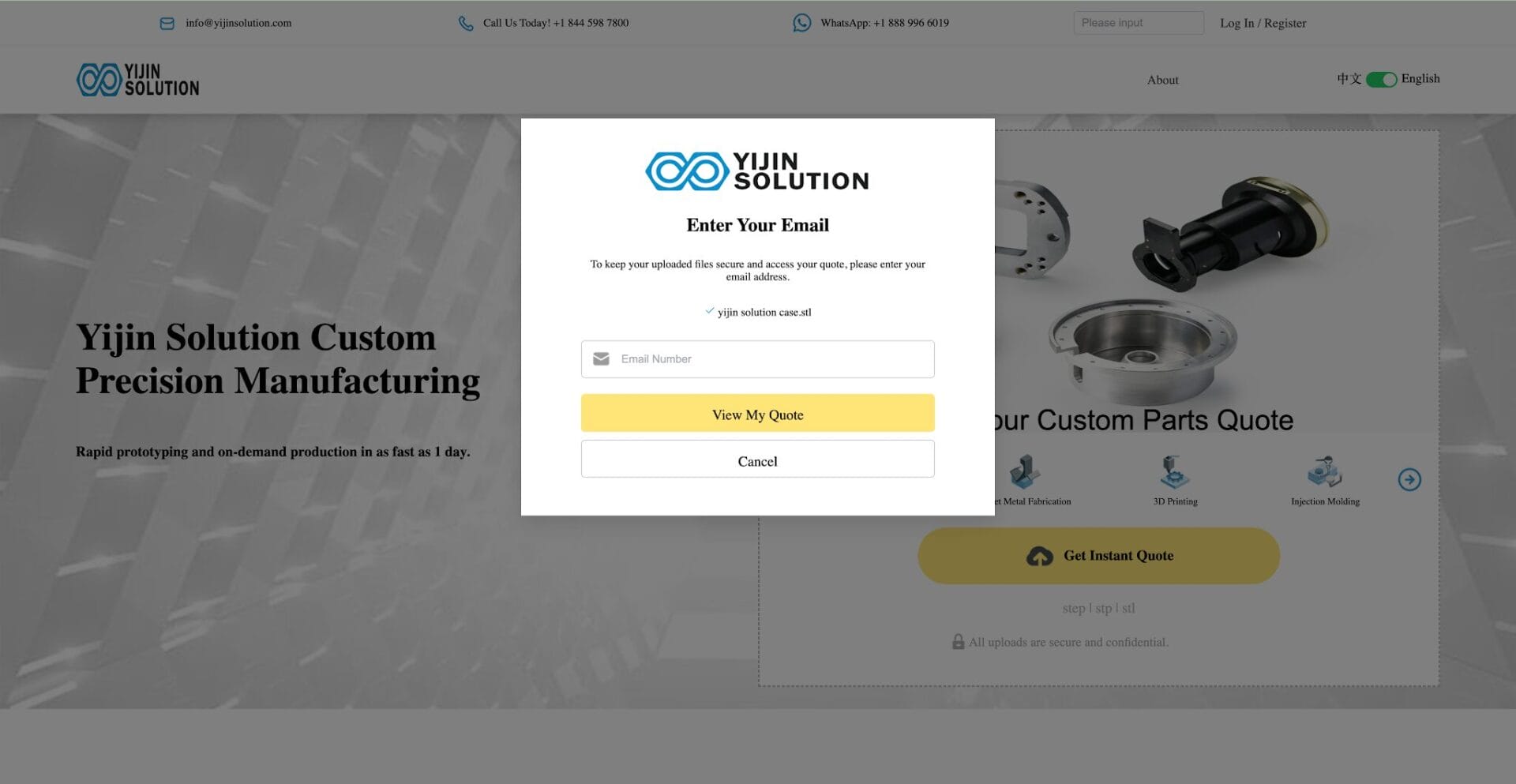
Once pricing is ready, enter your email address to log in and view the quote.
- If you already have an account, enter your password to sign in.

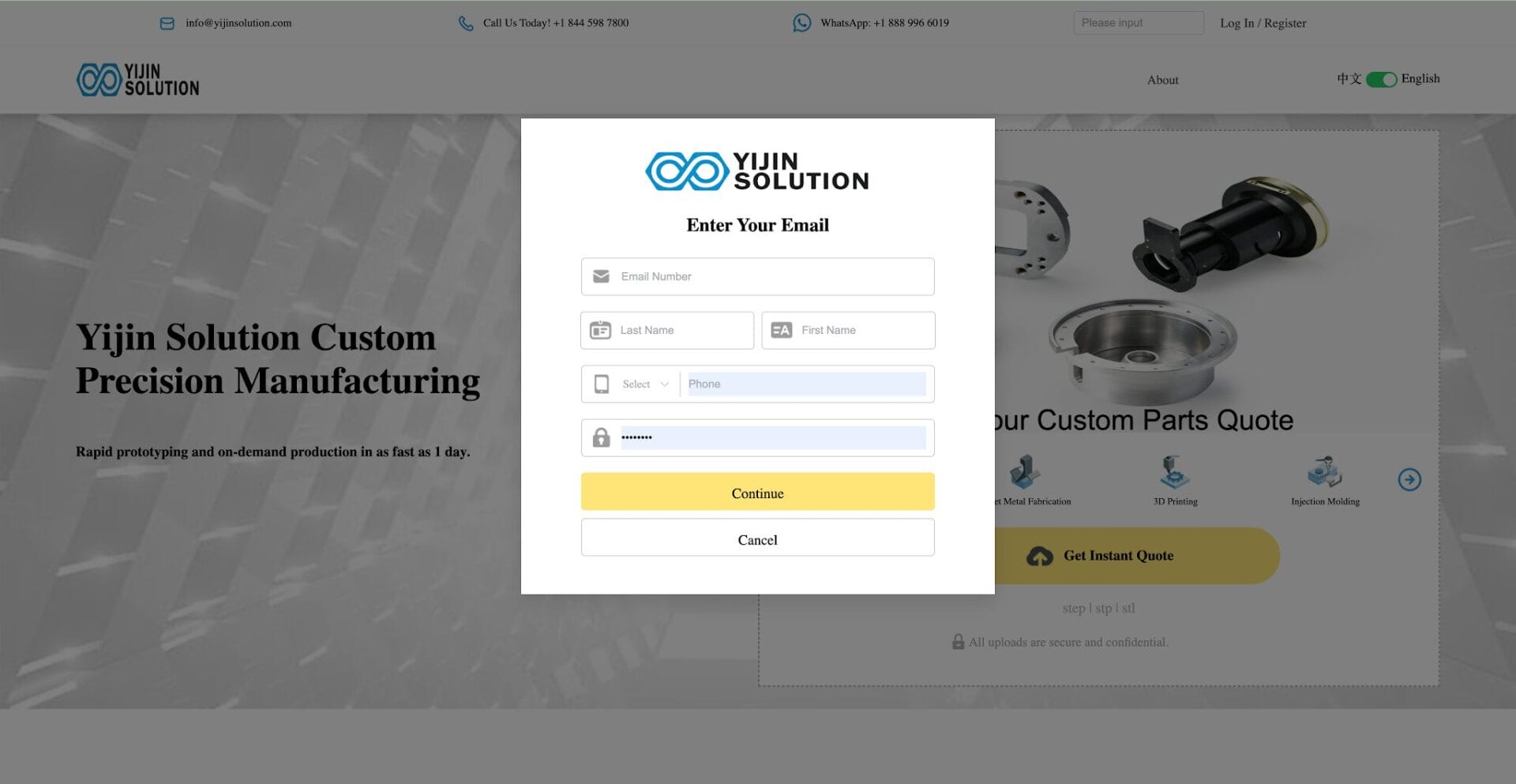
- If you are a new user, follow the on-screen instructions to register first, then log in to view your quote.
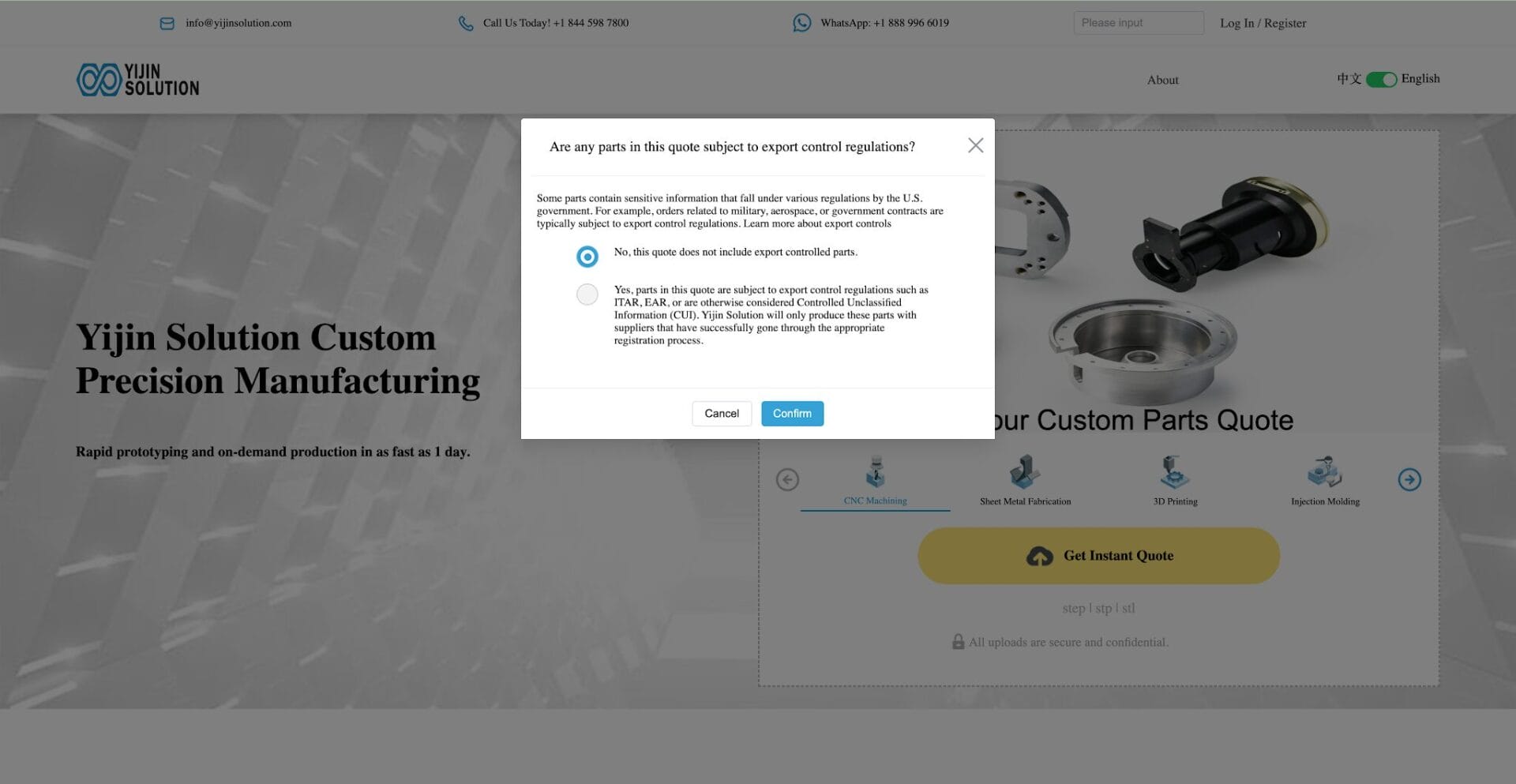
Confirm Export Control Terms
Before moving to the next step, please read the export control terms carefully. Based on your product situation, select the applicable option and click Confirm.
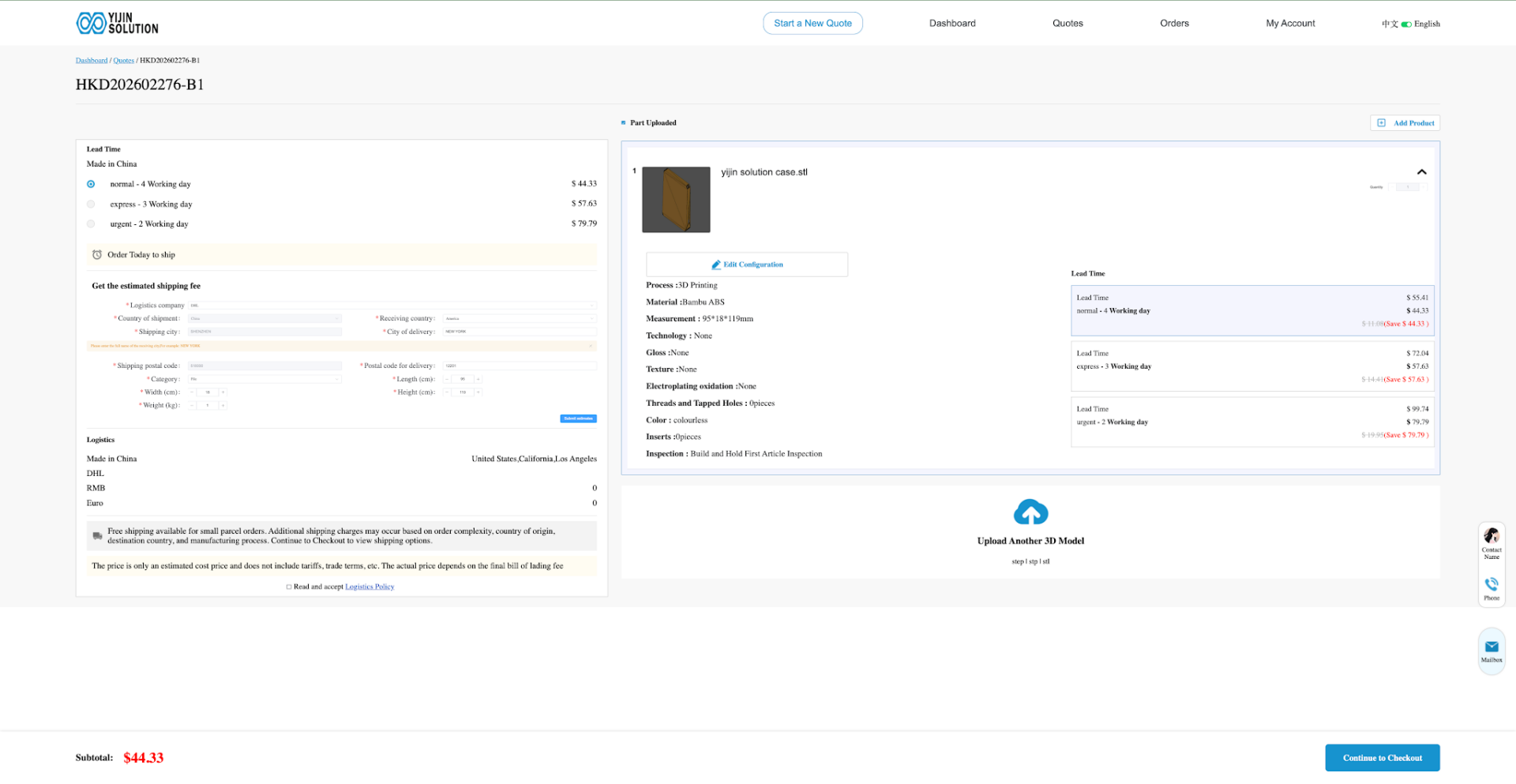
Review the Initial Quote
By default, the system provides a quote based on a single product and calculates pricing according to the longest lead time.
If the system cannot generate an automatic quote for your product, it will guide you into the manual quotation process. In that case, you only need to wait for a reply by email.
Customize Your Quote
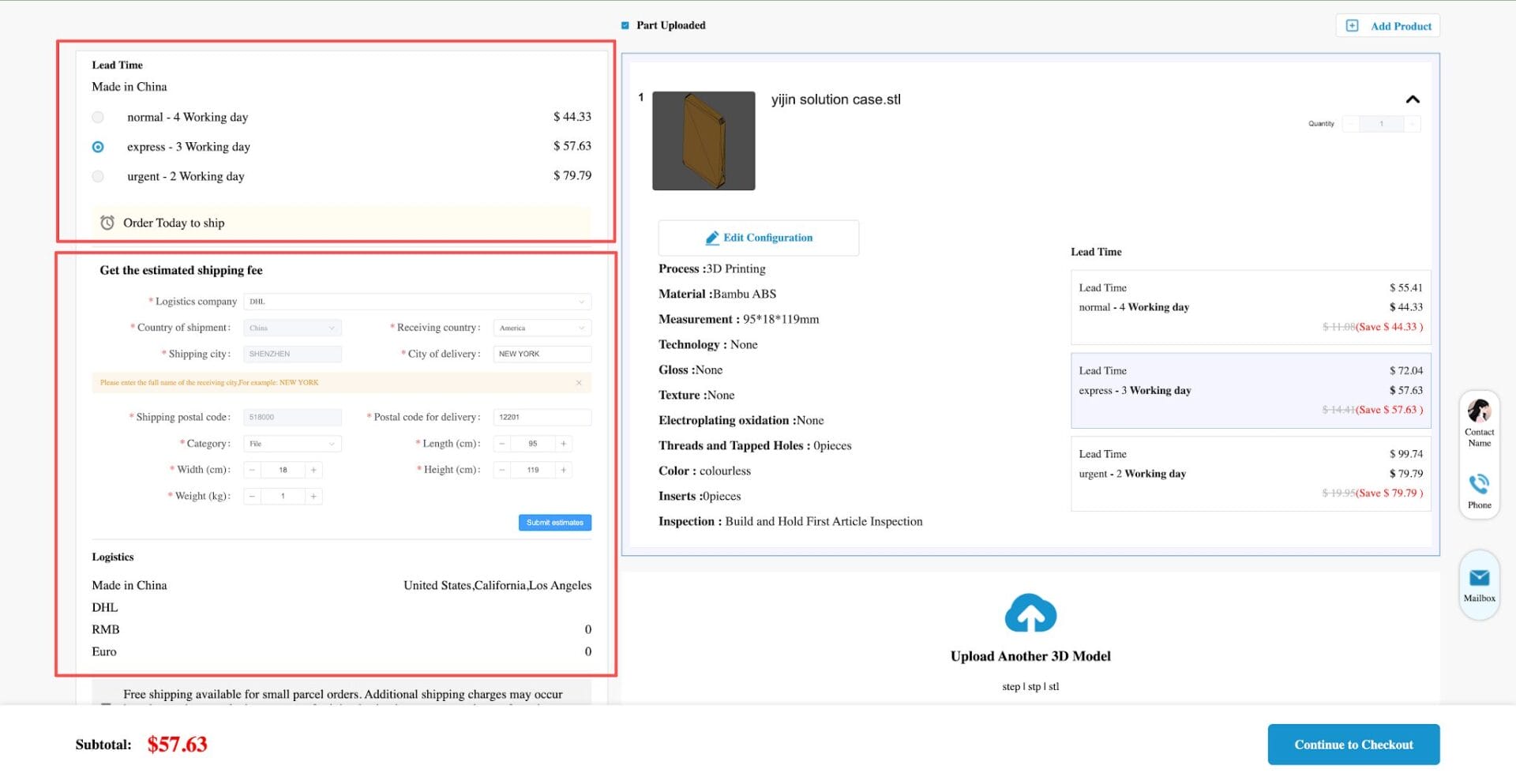
Change Lead Time and Shipping
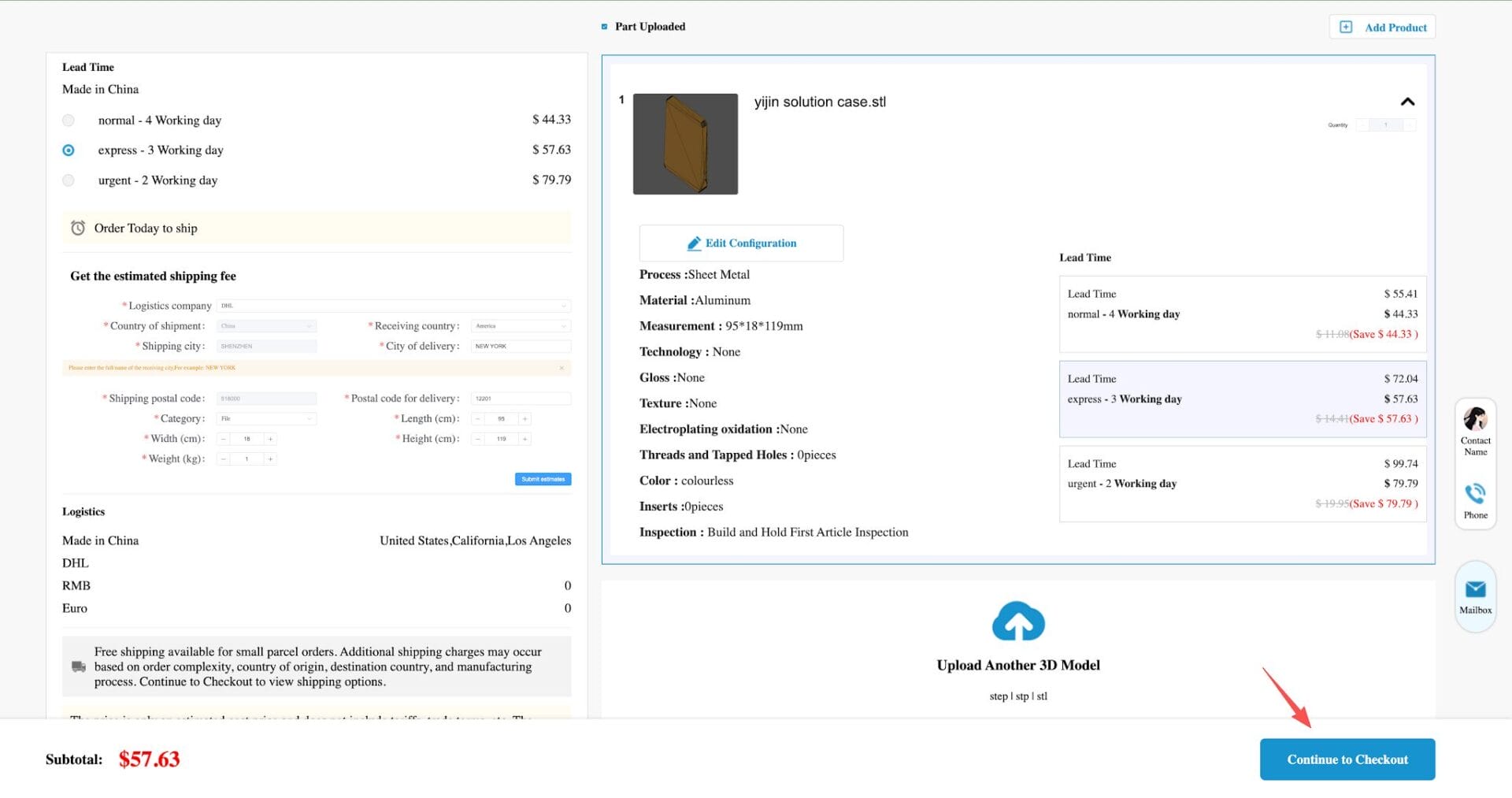
If you want to adjust the delivery schedule, you can change the number of delivery days. The system will automatically update the price.
For shipping cost estimation:
- Select a logistics provider
- Enter your shipping address
The system will then estimate the shipping cost automatically.
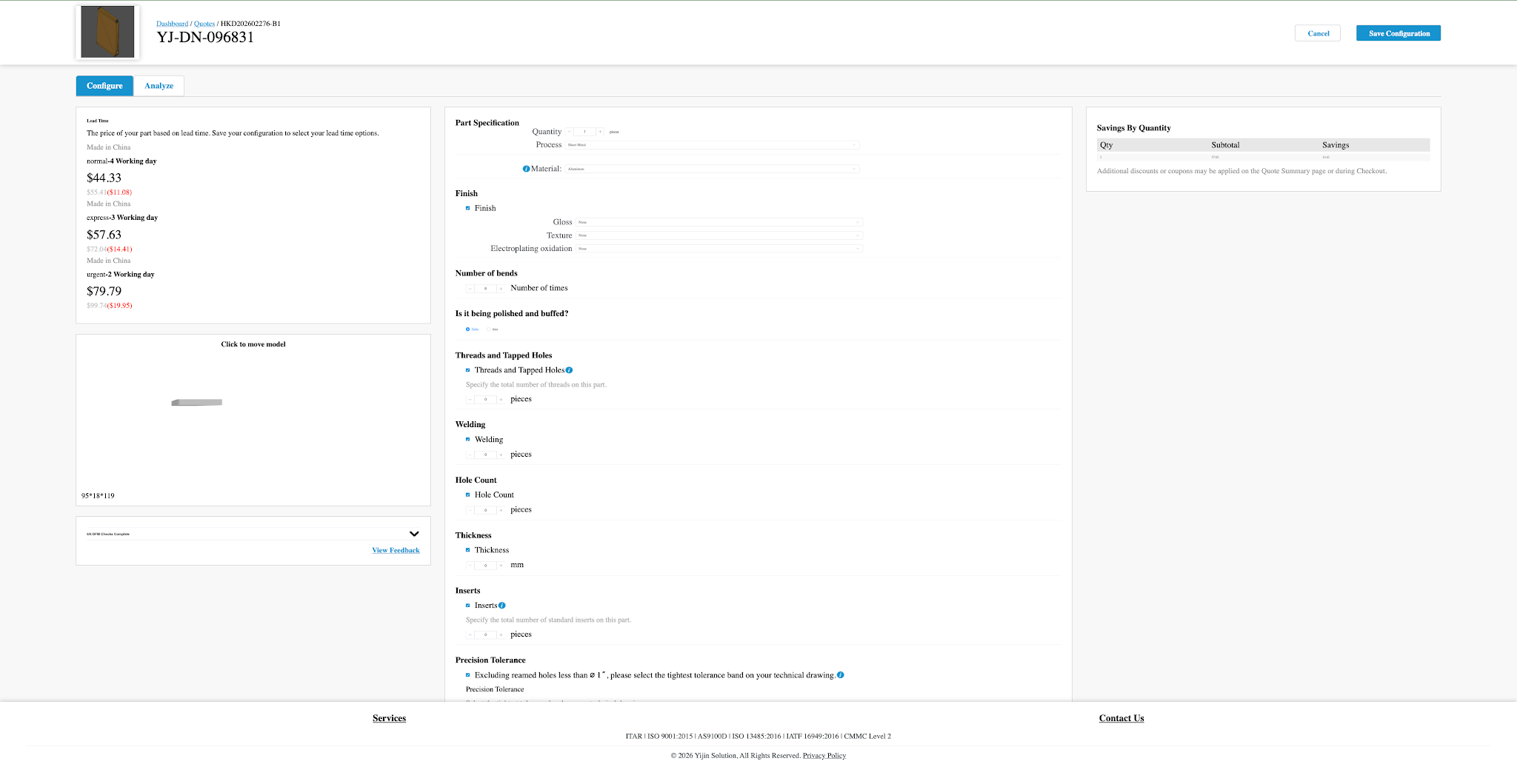
Edit Product Configuration
If you want to change product details such as quantity or add surface finishing options, click Edit Configuration to enter the configuration page.
After making your changes, click Save Configuration. The system will automatically recalculate the price.
Checkout and Production Scheduling
If you are satisfied with the quoted price, click Continue to Checkout to move to the checkout page.
On the checkout page, the process usually follows these steps:
- Enter the shipping address
- Confirm the export control terms
- Complete online payment
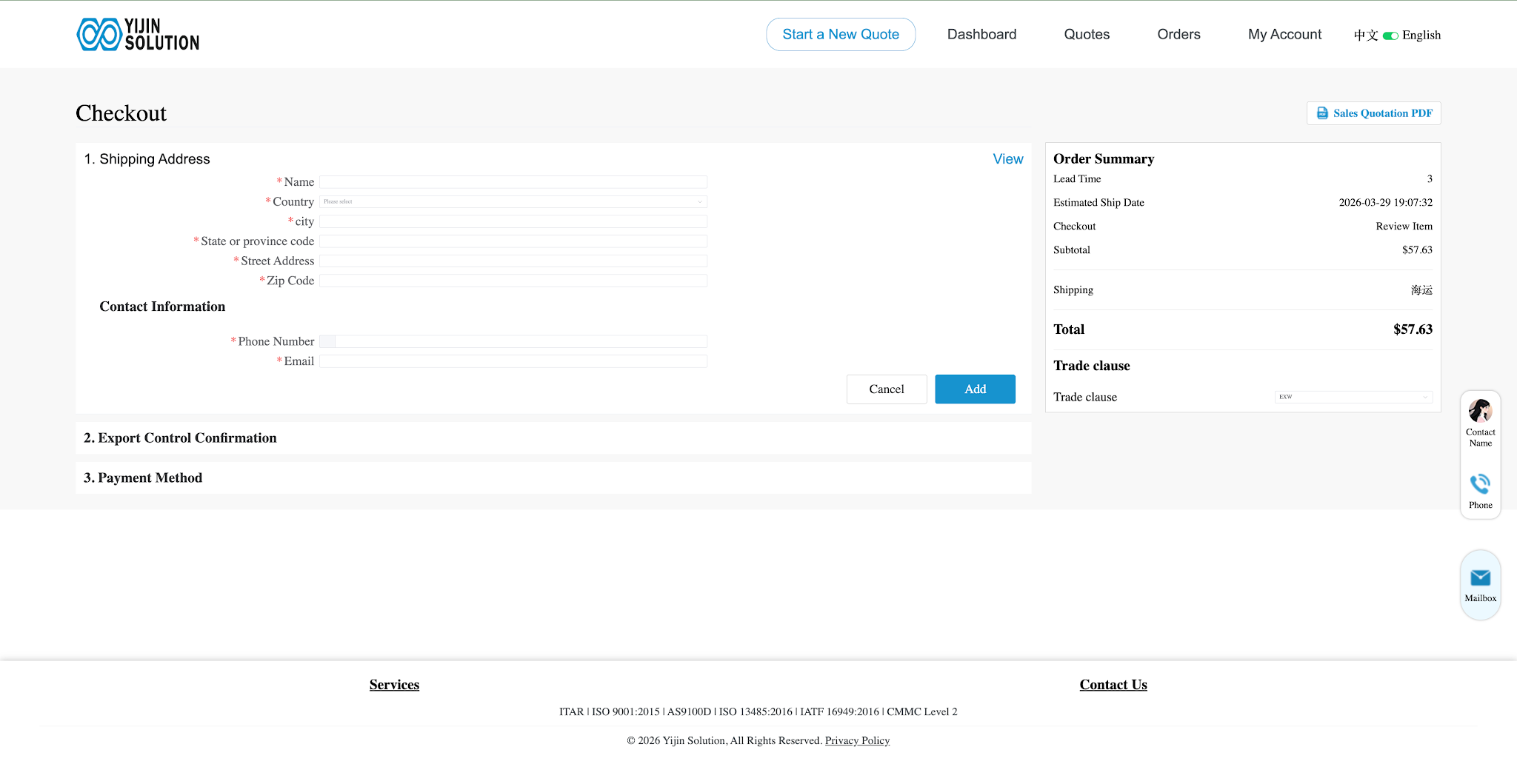
After payment is completed, the system will automatically send the order to the factory for production scheduling.
You can also click Download in the top right corner to download the order details in PDF format.
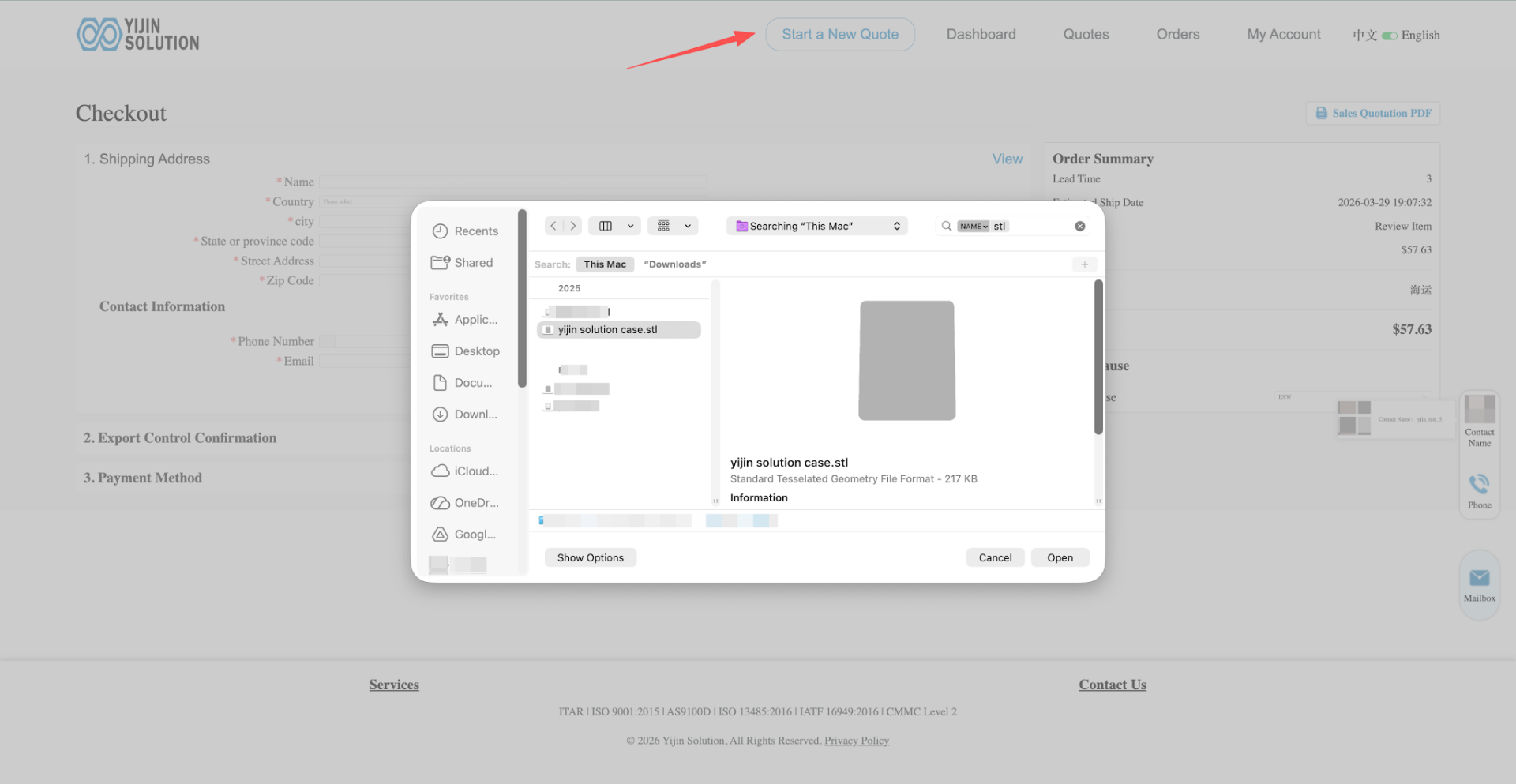
Start a New Quote
If you are already logged in, click Start New Quote and select the file you want to upload.
You will then follow the same process described in the Get an Instant Quote section.
Home Page Functions
Click Dashboard at the top of the system to return to the main dashboard.
The home page includes two main quotation options:
- Instant Quote for Parts
- Quote for Assembly and Production Orders
Click either option to enter the guided quotation workflow.
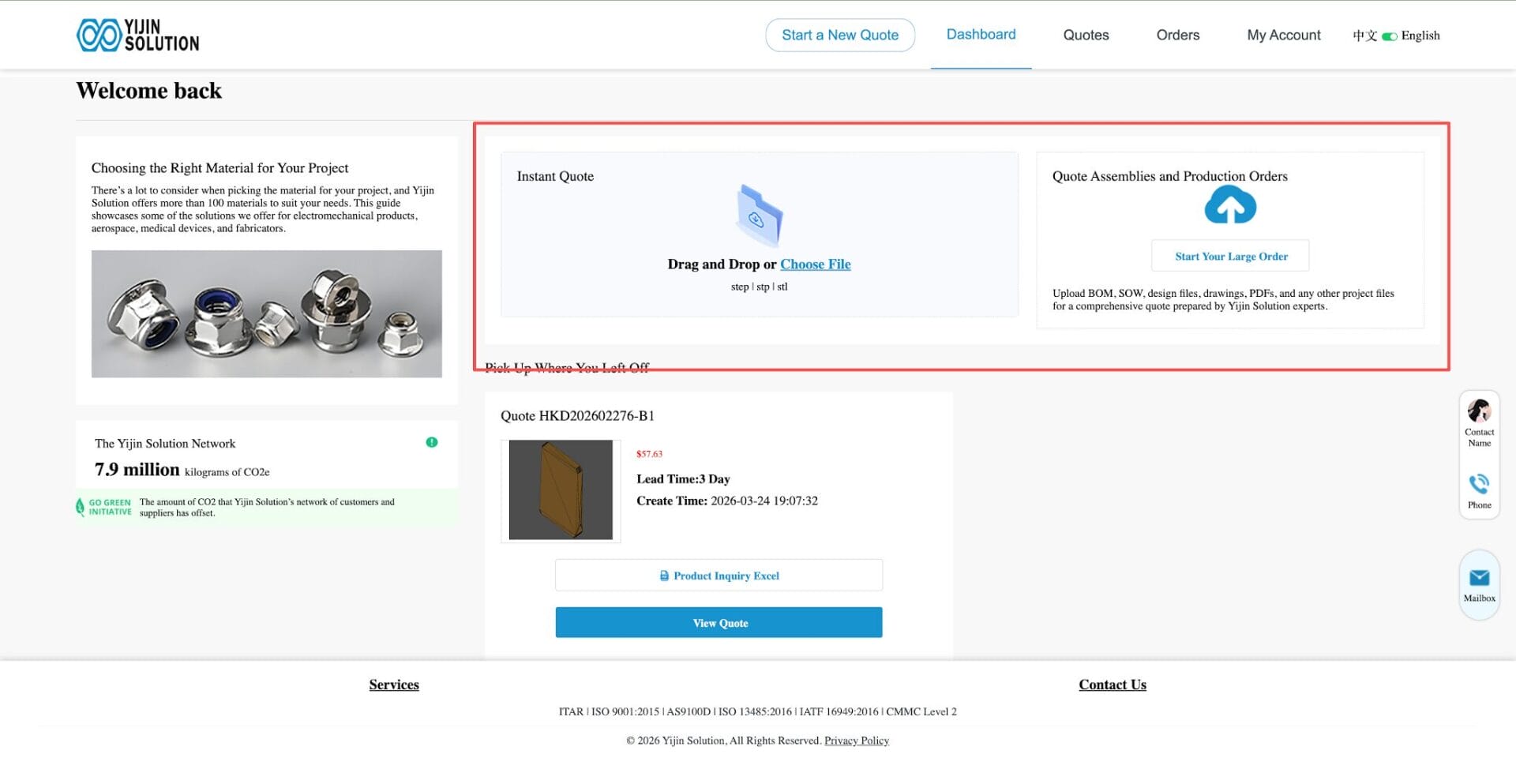
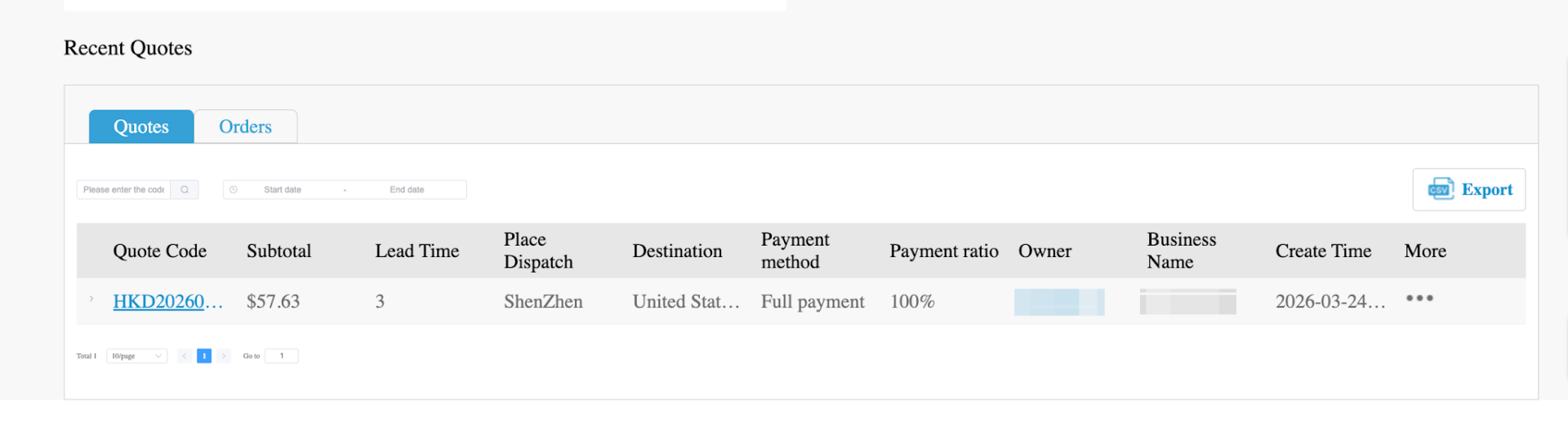
On Recent Quotes of the home page, you can also view your recent quote records. From there, you can:
- View quote details
- Continue working on a quote
- Access related orders
In the Quotes area, click More to manage the current quote. Available actions may include:
- Edit
- Place an order
- Download
- Delete
In the Orders area, you can view order details in the order management section.
Please note that only paid quotation orders will move into the order management area.
Quotes
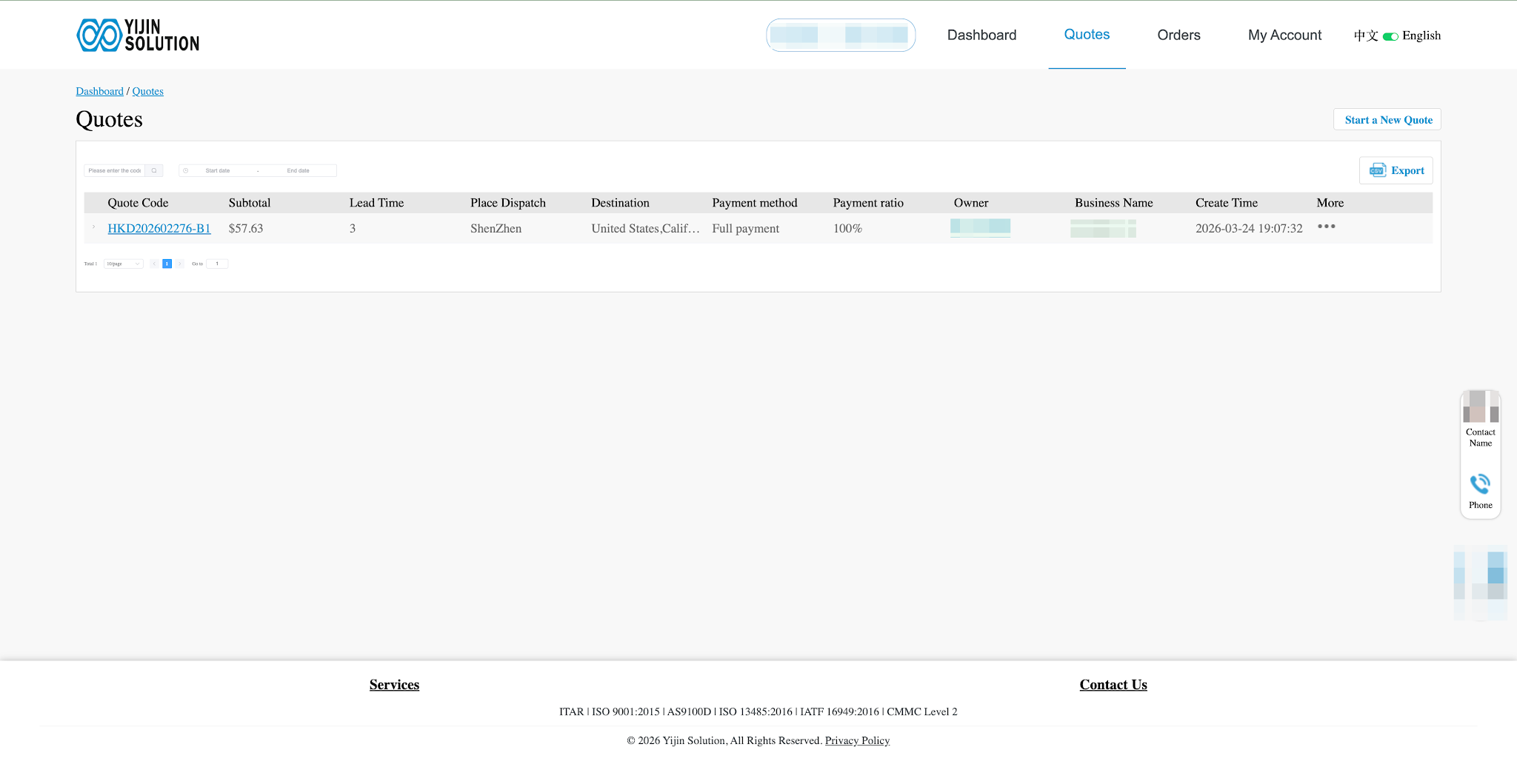
In the Quotes section, you can manage all of your quotation records in one place.
Available actions include:
- View quote information
- Export quote data
- Edit or update quote details
- Convert a quote into an order
Once you generate an order from a quote and complete payment, the system will create the order automatically.
Orders
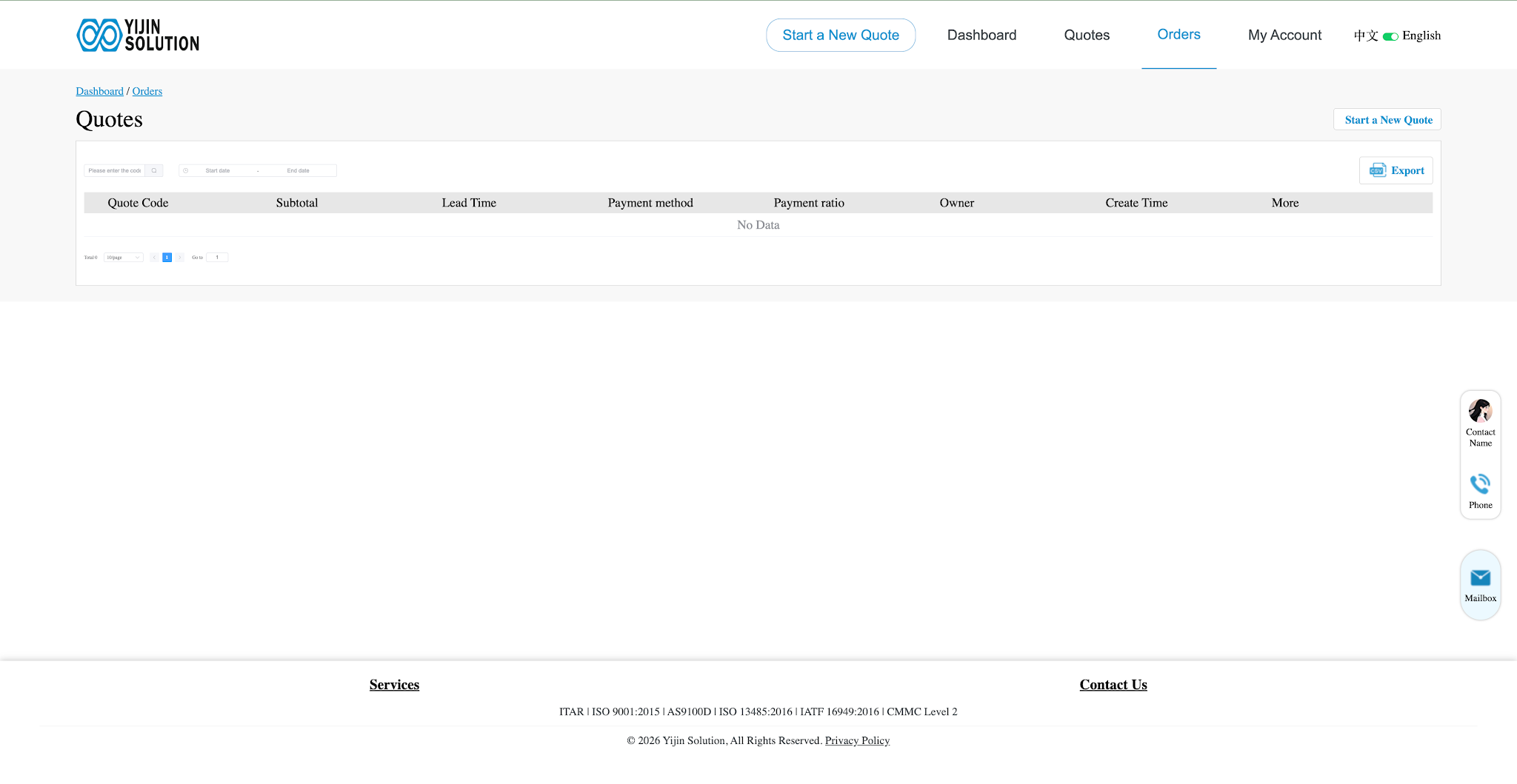
In the Orders section, you can manage all personal orders and check the current status of each order at any time.
Search Orders
The system supports order filtering by:
- Quote code
- Time range
- Other available search conditions
This makes it easier to find a specific order quickly.
Export Order Details
You can export order details as a PDF file with one click.
My Account
The My Account section lets you view and manage your account-related information.
Today’s Inquiry
You can view all quotation records created today.
Upload Inquiry
In the upload quote section, you can directly upload drawings or files to request a quote.
Perfect Archive
You can view and update your personal information here.
Platform Feedback
If you experience any inconvenience while using the platform, you can submit suggestions for improvement through the feedback section.

Tips for a Smoother Quoting Experience
To help the system process your quote more efficiently, it is recommended to:
- Use a compatible browser such as Chrome or Edge
- Upload clear and complete design files
- Double-check product configuration before saving
- Review shipping and lead time options carefully before checkout
- Complete payment promptly if you want the order to move into production scheduling
Conclusion
Yijin Solution’s online quoting system is designed to make custom part sourcing more direct, from file upload to pricing and order placement.
Once you are familiar with the basic flow, it becomes much easier to compare configurations, manage quote records, and move projects forward without unnecessary back-and-forth.
If you already have a file ready, you can start with an instant quote and see the next steps from there.




 EN
EN  ES
ES  RU
RU  DE
DE  FR
FR